← Back to home

User guide

Quote, share, and book the job

Use this quick guide to find the quote tools, share a secure customer link, and turn the exact accepted quote into a scheduled job.

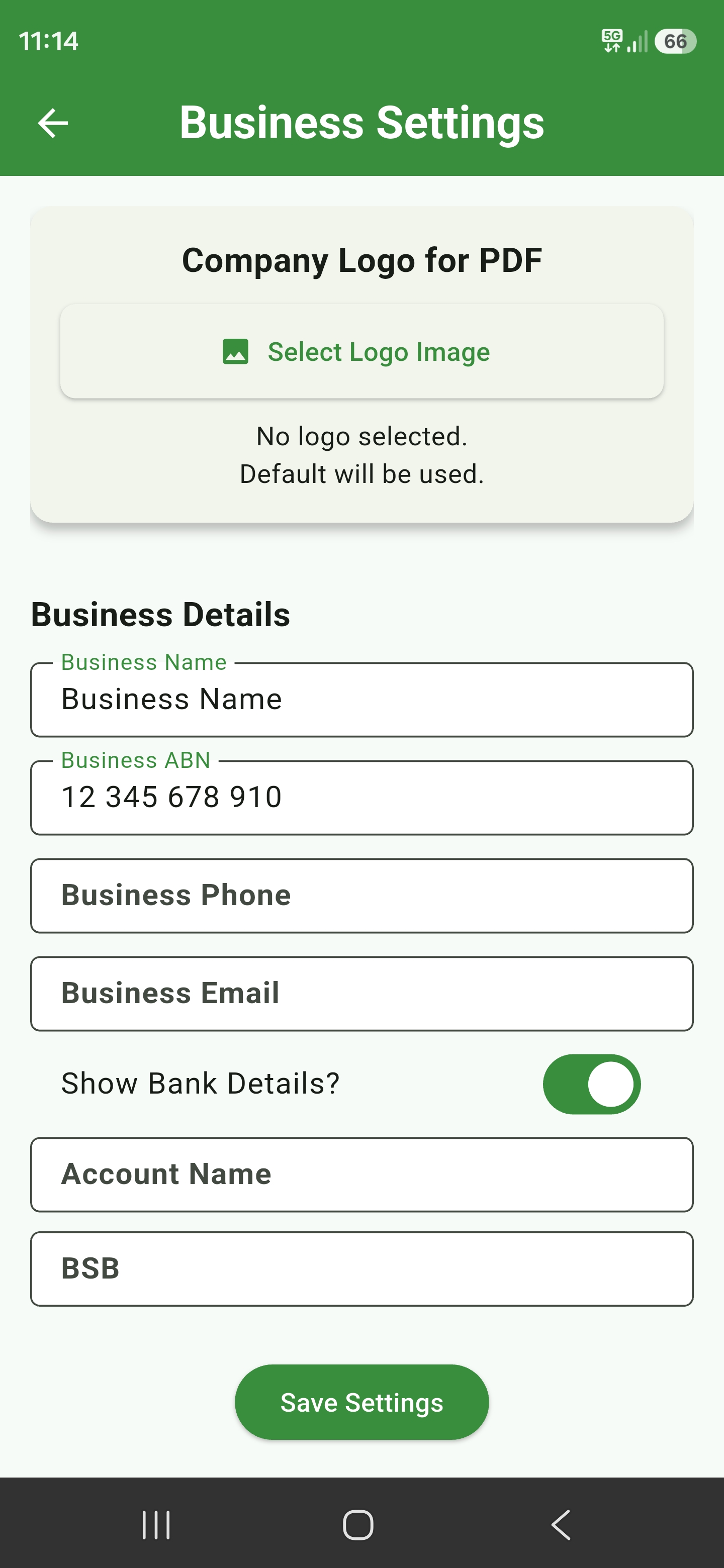
Business Settings screen with logo, business details, and banking options

Set up business defaults

Open App Settings to add your business details, logo, terms, default rates, and business-wide pricing settings.

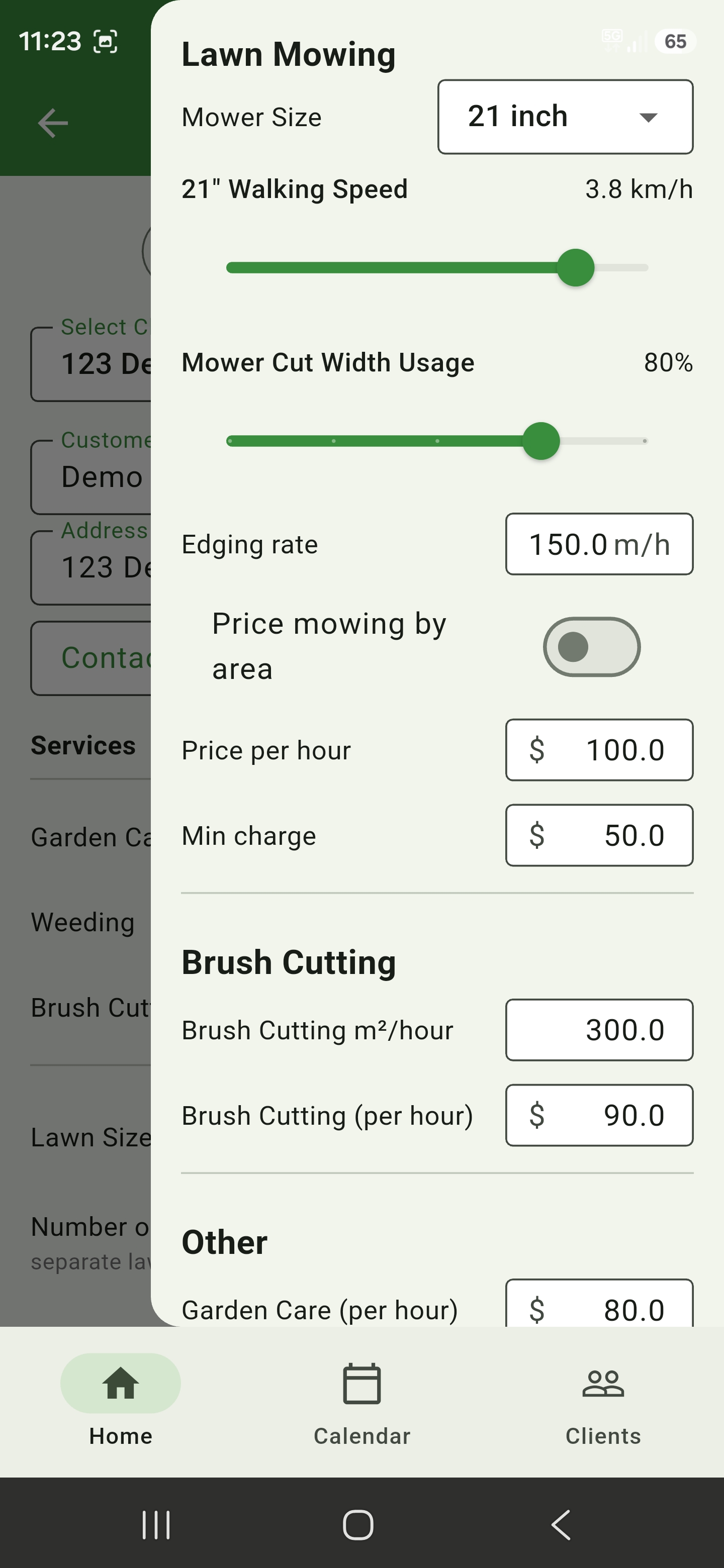
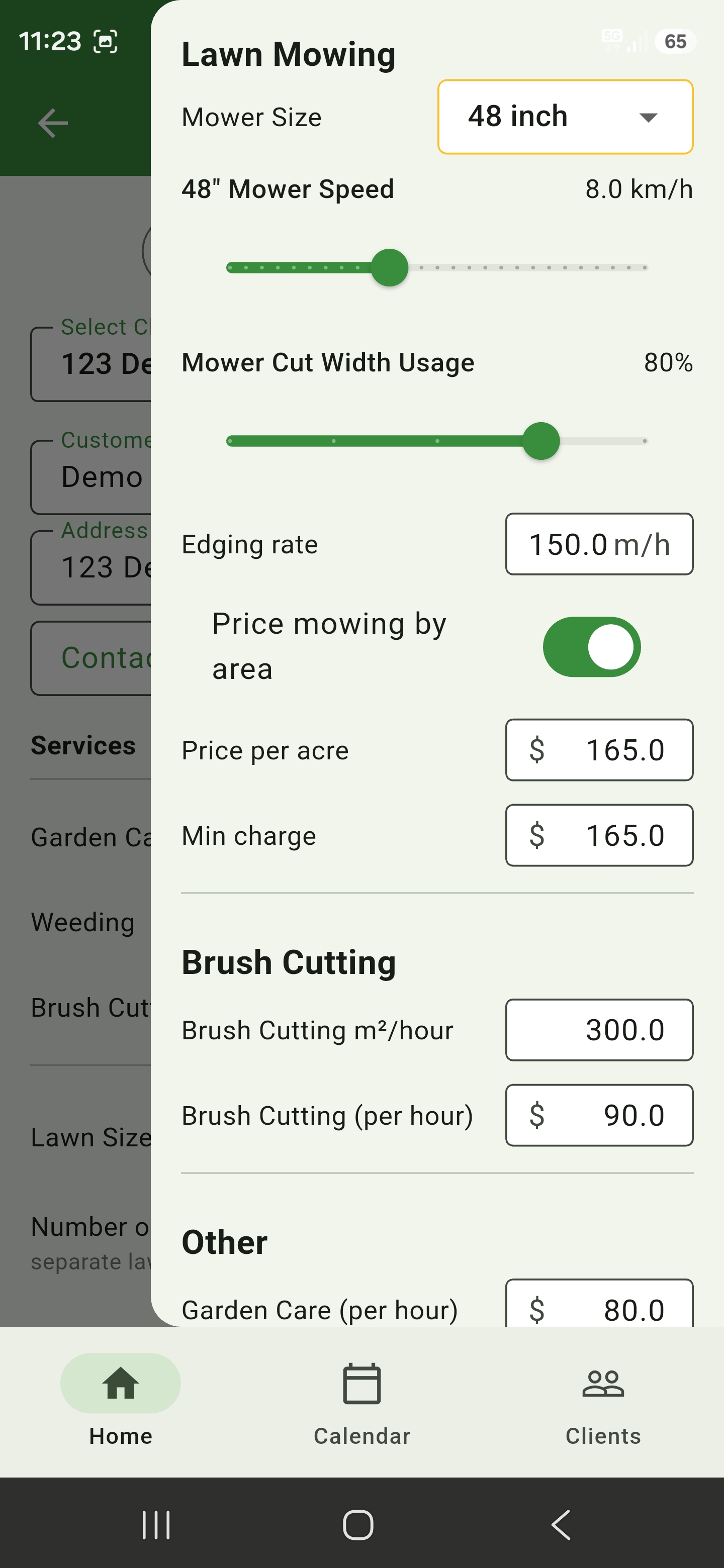
Use the quote end drawer for quote-specific pricing, including mower selection, speed, cut width, edging, bagging, and area pricing options.
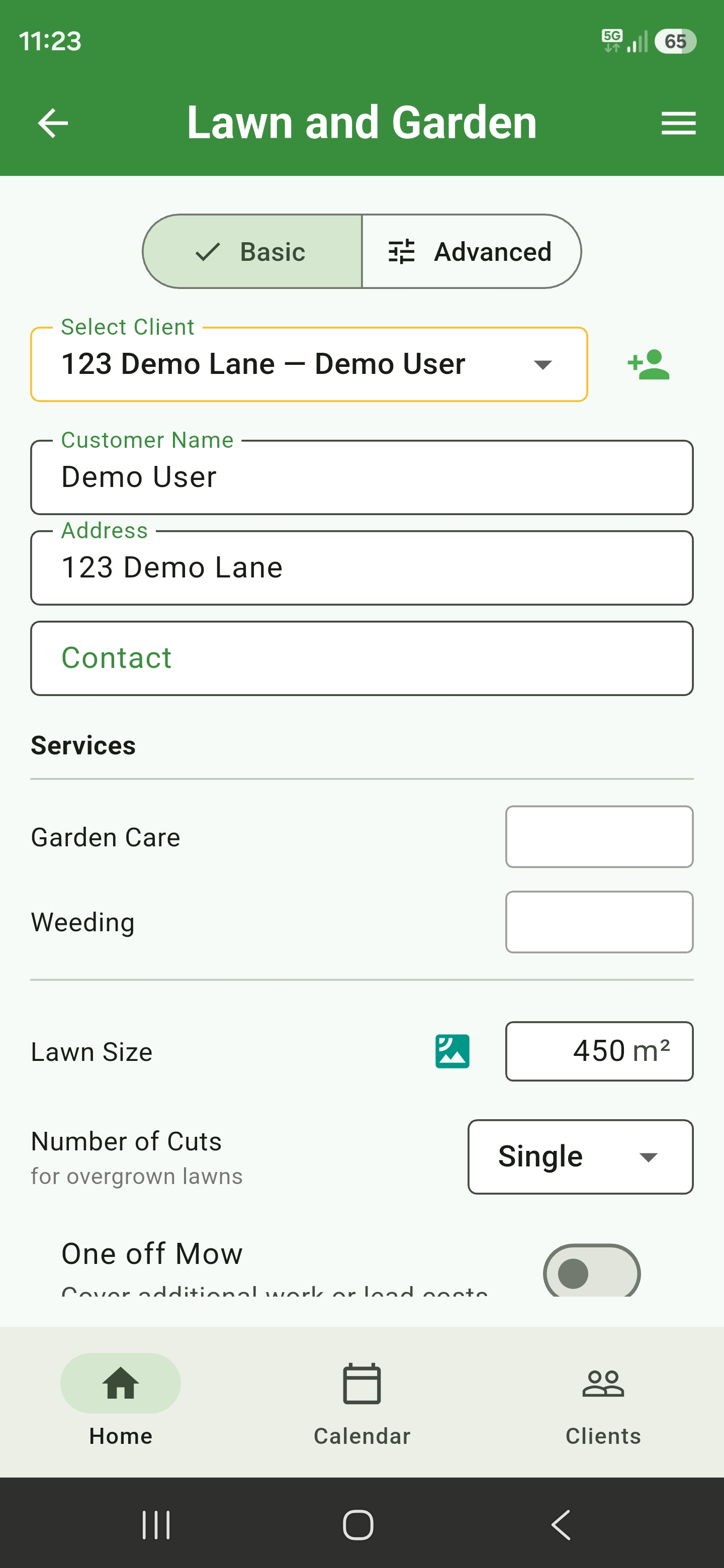
Basic lawn quote mode with essential quote fields

Use Basic or Advanced

Open a quote form and use the mode selector at the top of the form to switch between Basic and Advanced.

Basic keeps the screen cleaner for fast quotes. Advanced shows more detailed pricing sections when you need tighter control.

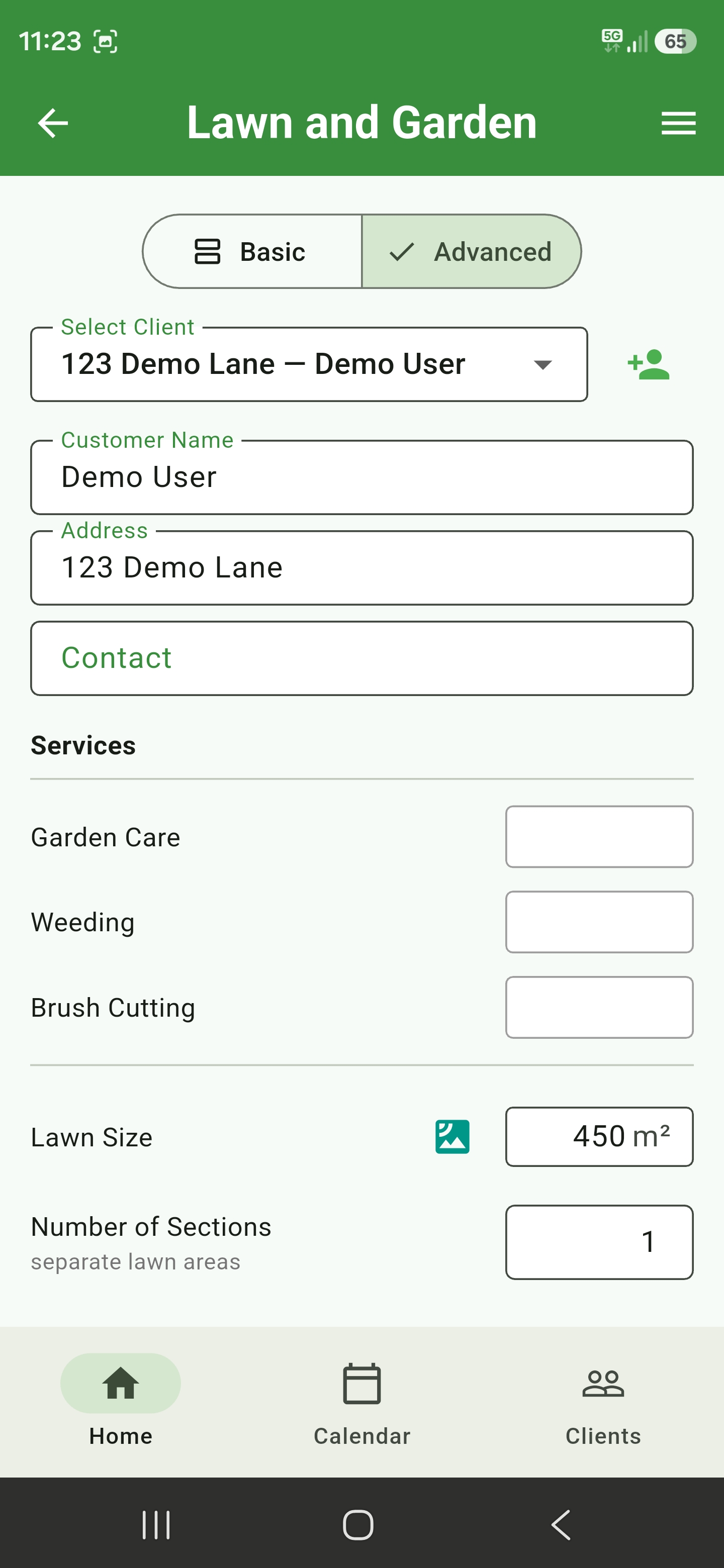
Advanced lawn quote mode with additional quote fields
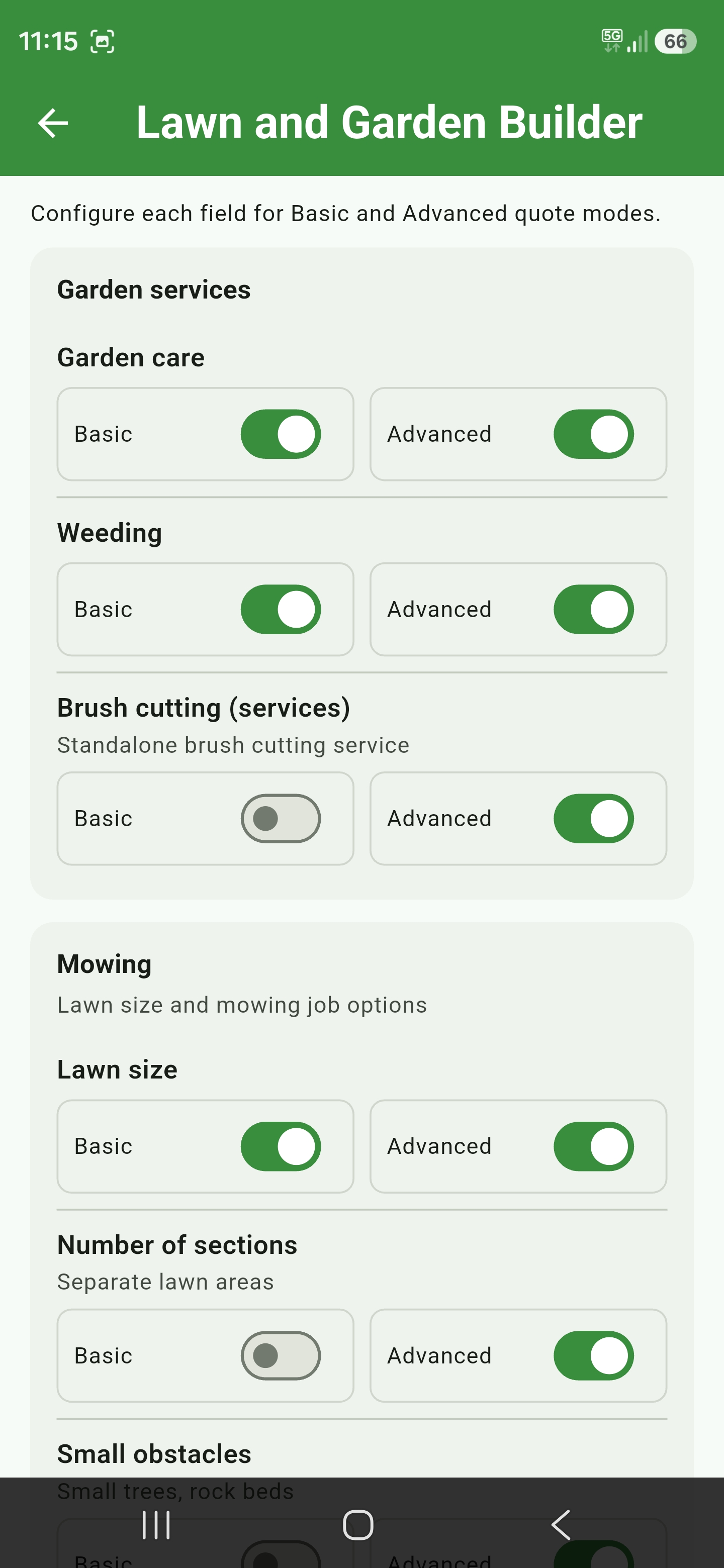
Lawn and Garden Builder showing Basic and Advanced section toggles

Configure UI Builders

Open UI Builder from the app menu to choose which sections appear in Basic and Advanced quote modes.

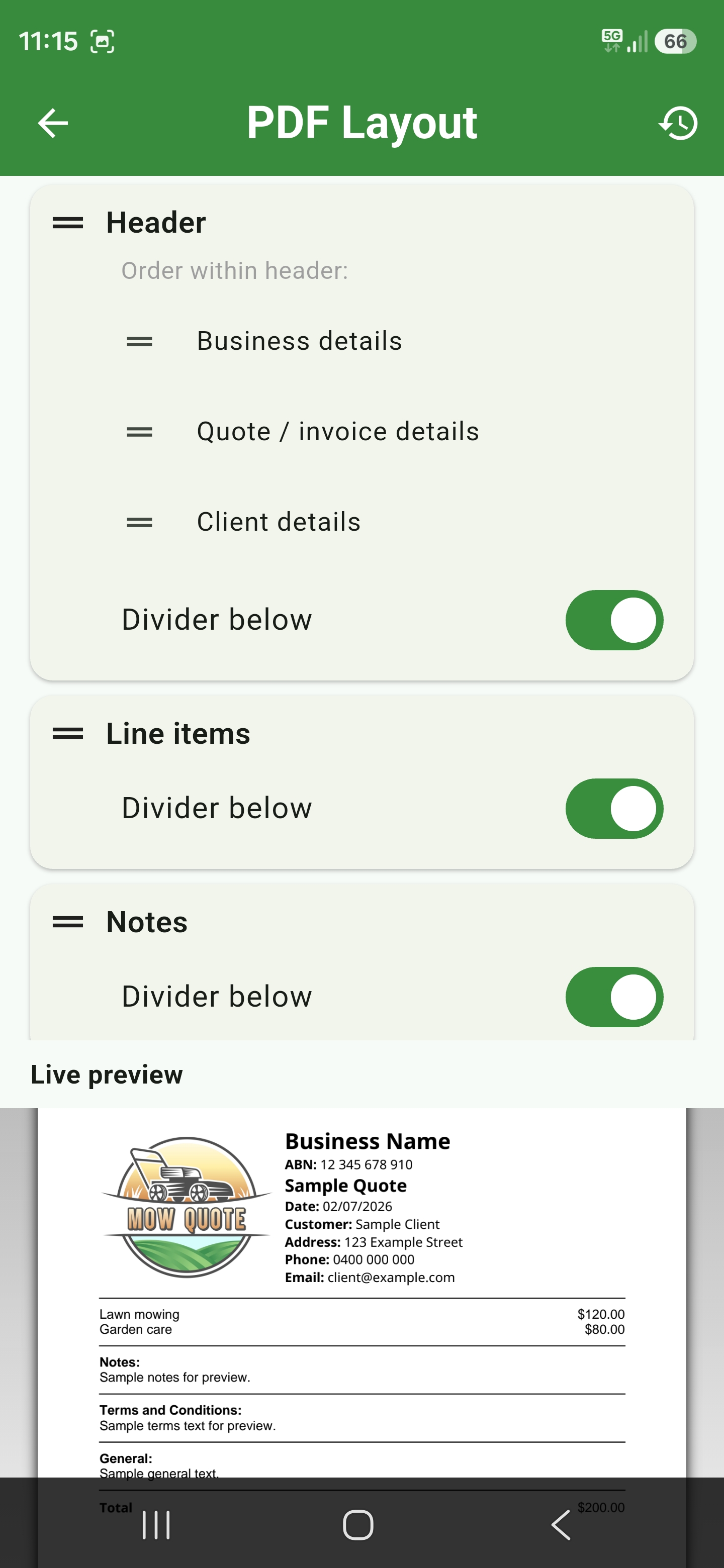
This area also includes PDF layout setup, form configuration, and Email Templates so quote setup is easier to find.

PDF Layout builder with document sections and live preview
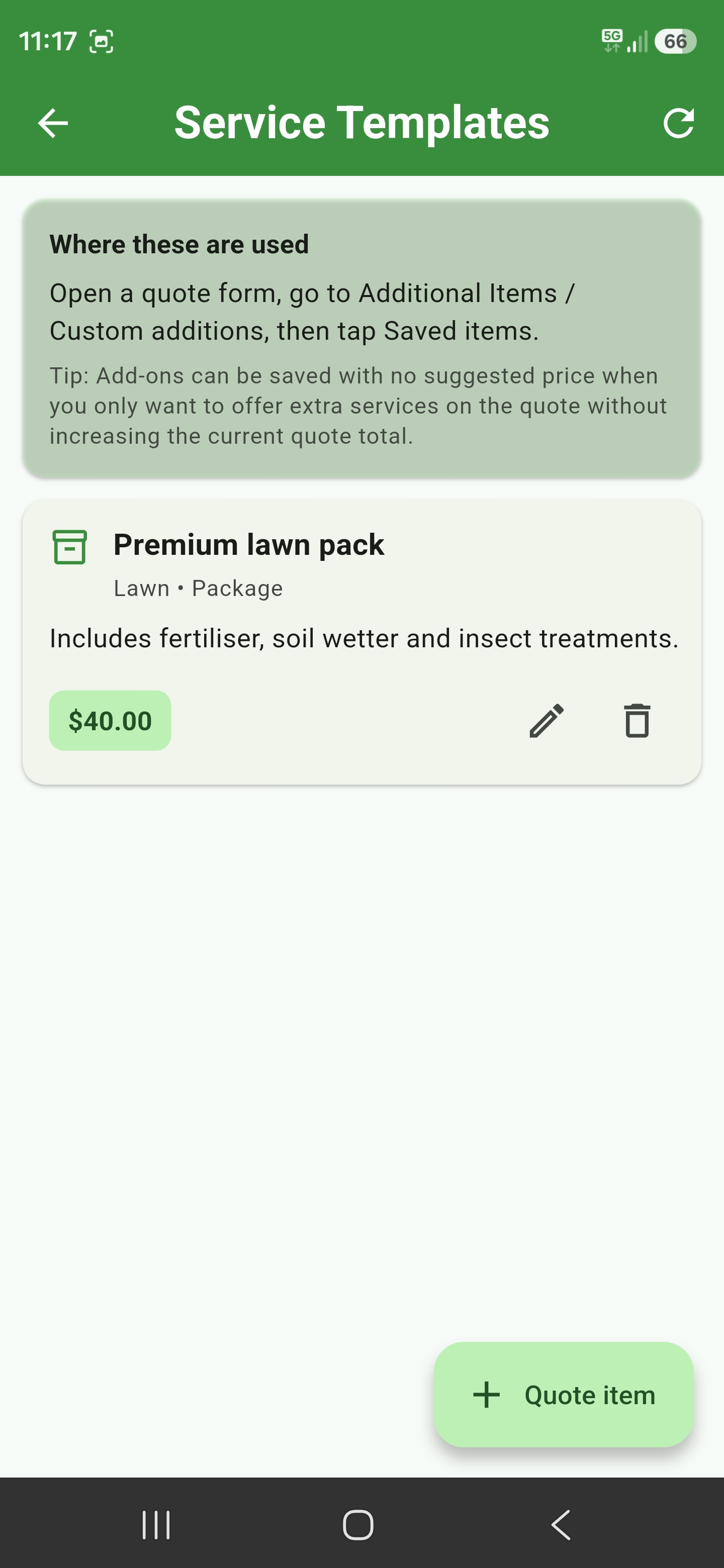
Service Templates screen showing a saved premium lawn pack

Create service templates

Use saved service templates for common packages, paid services, upsells, and optional extras.

Zero-cost additional items can be used for notes or no-charge services that still need to appear on the quote.

Lawn mowing drawer configured for hourly pricing

Price by time or area

Set mower-specific hourly rates, minimum charges, acre rates, and acre minimums for residential and commercial mower sizes up to 72 inches.

For larger lawns, use area-based quoting and review the quote confidence panel for mowing price, rate, and acre-pricing details.

Lawn mowing drawer configured for area pricing
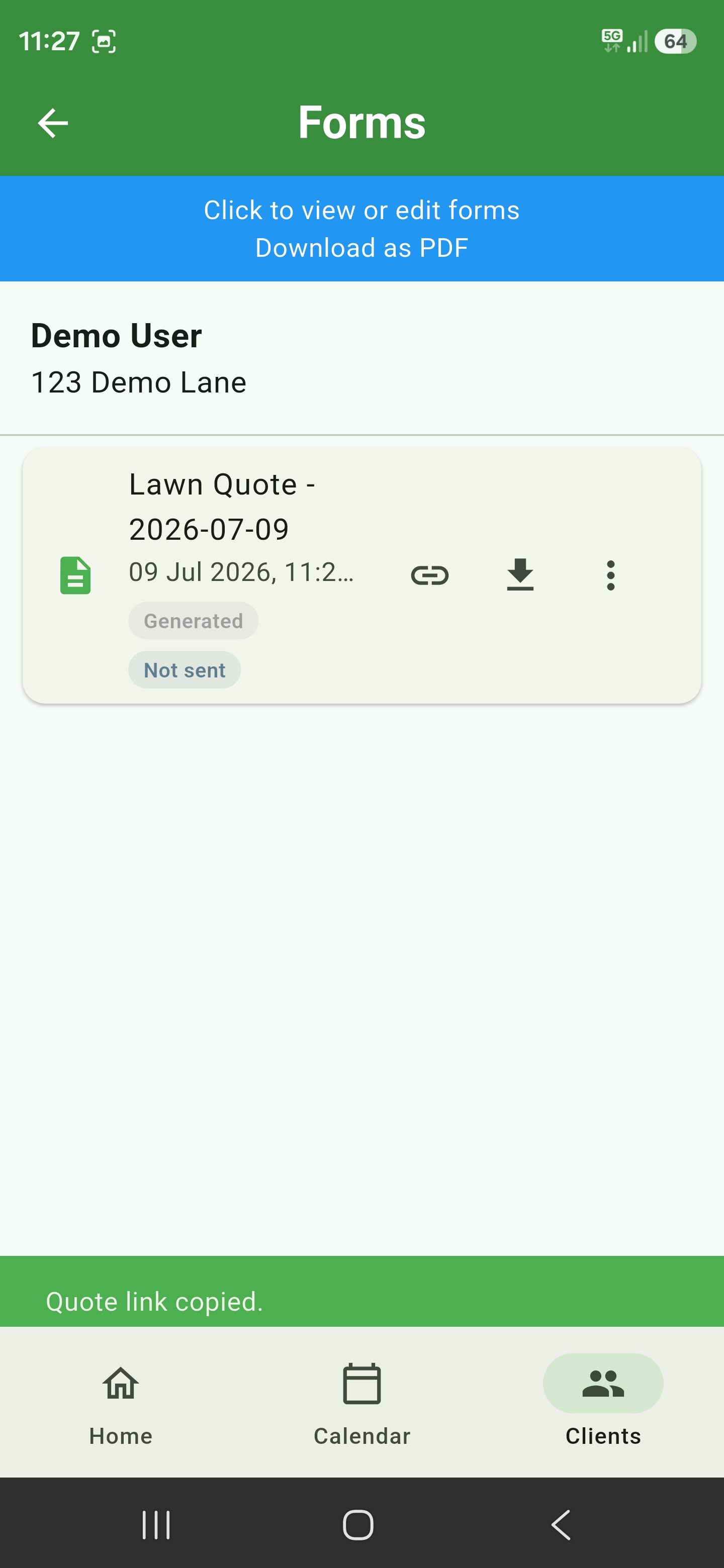
Saved quote file with secure quote link copied

Share a quote link

Open a client, go to their saved quote files, then tap the link icon on the quote you want to share.

The app copies a secure quote link. If you add an access code, send the code separately from the link.

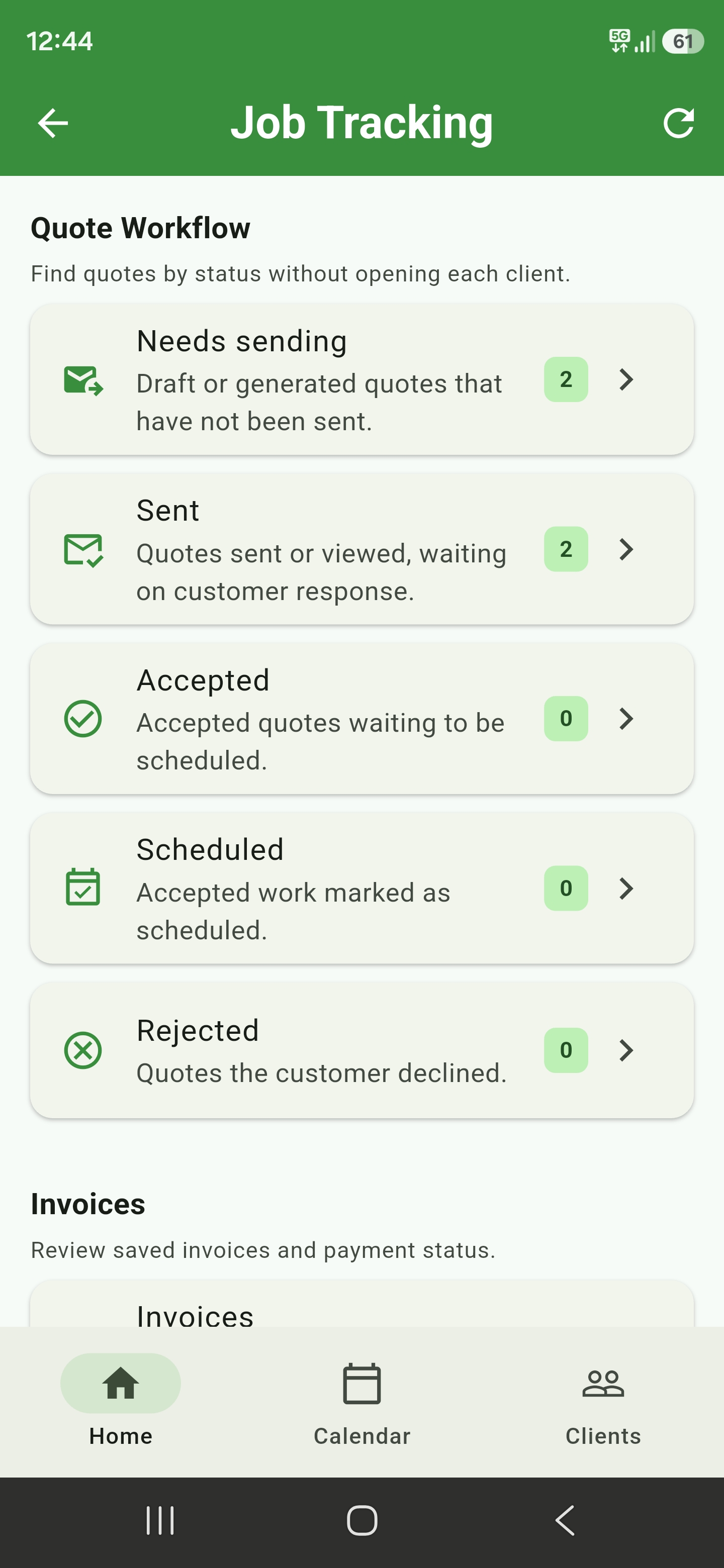
Job Tracking screen showing quote workflow statuses

Track quote progress

Open Job Tracking to see quotes grouped by workflow status, including needs sending, sent, accepted, scheduled, and rejected.

Use it to find work that needs follow-up without opening each client one by one.

Quote to calendar

Book a job from a quote

Use the saved quote as the source of truth. The booking keeps a link to the exact quote revision and brings its agreed details into the job.

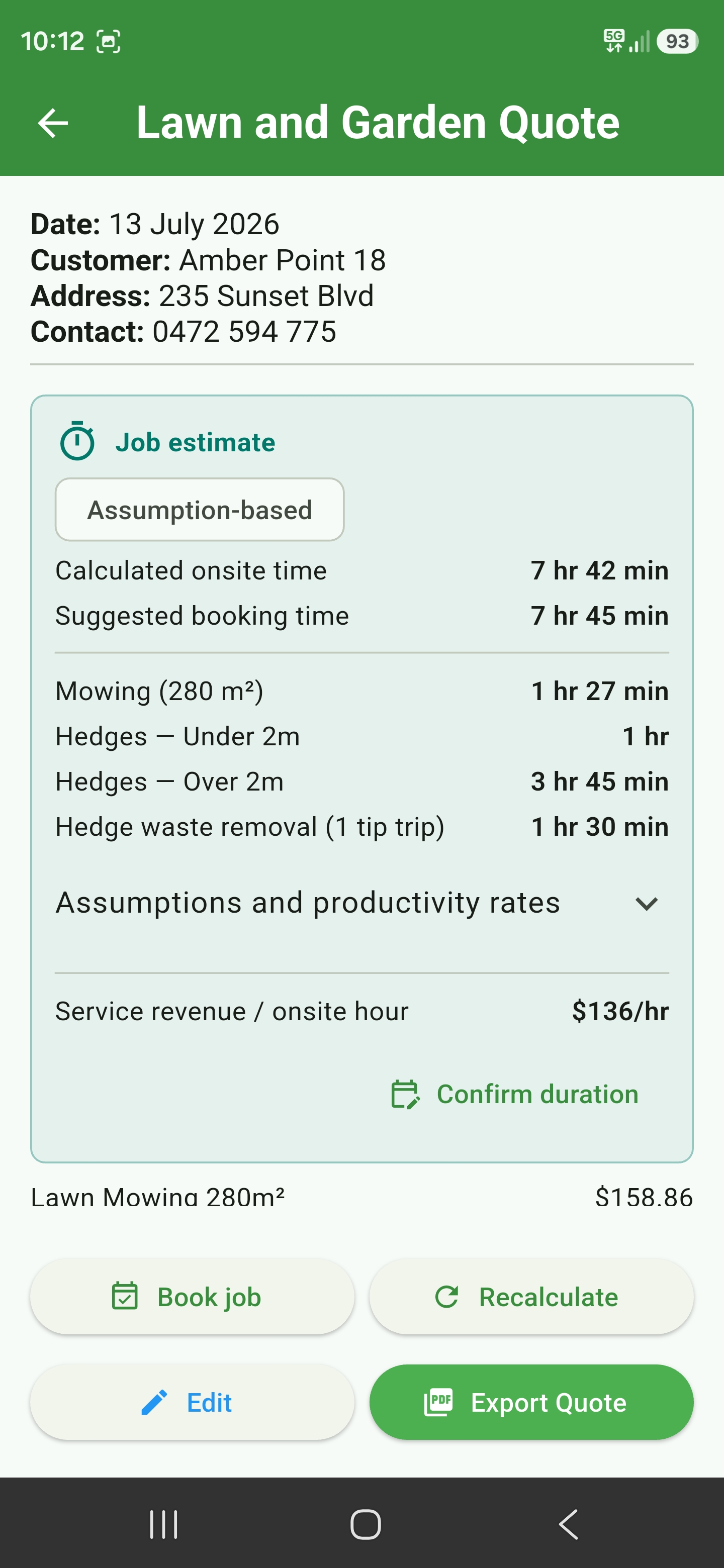
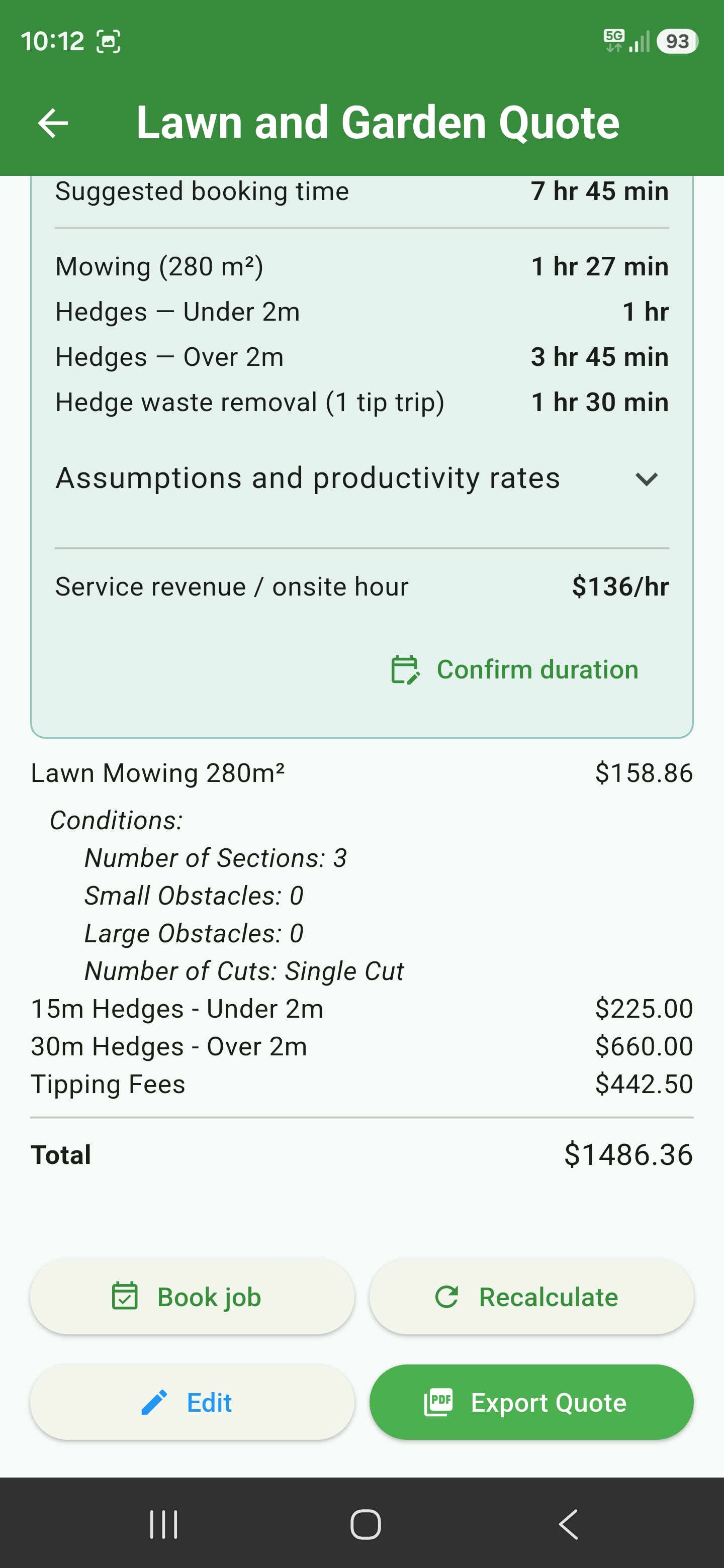
Saved quote showing the calculated onsite time, suggested booking time, service breakdown, and Confirm duration action

Review the job estimate

Open the saved quote and review its calculated onsite time, suggested booking time, and service breakdown. Use Confirm duration if you want to set the booking length yourself.

Saved quote actions with Book job, Recalculate, Edit, and Export Quote buttons

Choose Book job

Choose Book job on the saved quote. You can also open Job Tracking > Accepted Quotes and choose Book job beside the quote you want to schedule.

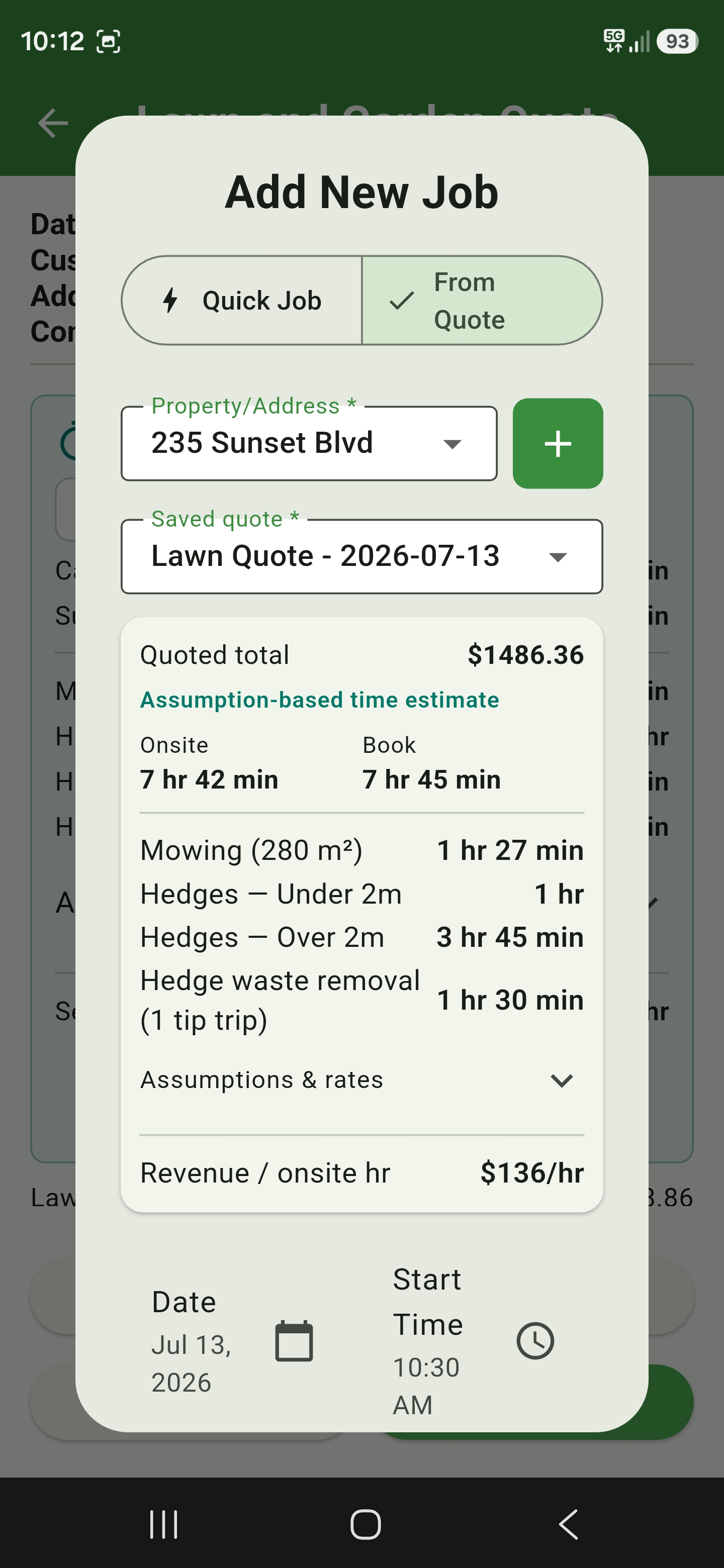
Add New Job screen in From Quote mode showing the selected quote, quoted total, time estimate, date, and start time

Review and schedule the work

In From Quote mode, check the selected quote, quoted total, time estimate, date, start time, priority, and worker instructions. Choose Add Job, then review any duplicate-booking or schedule-conflict warning.

Customer view

What customers see

Customers open the quote link in their browser, enter the access code if one was set, then review your business details, quote line items, totals, notes, and terms.

They can accept or reject the quote and add an optional message, such as preferred dates or questions about the work.